How Abercrombie & Fitch Defines “Sensitivity”
How does Abercrombie & Fitch portray sensitivity? Like this… Would the brand do it any other way?


How does Abercrombie & Fitch portray sensitivity? Like this… Would the brand do it any other way?
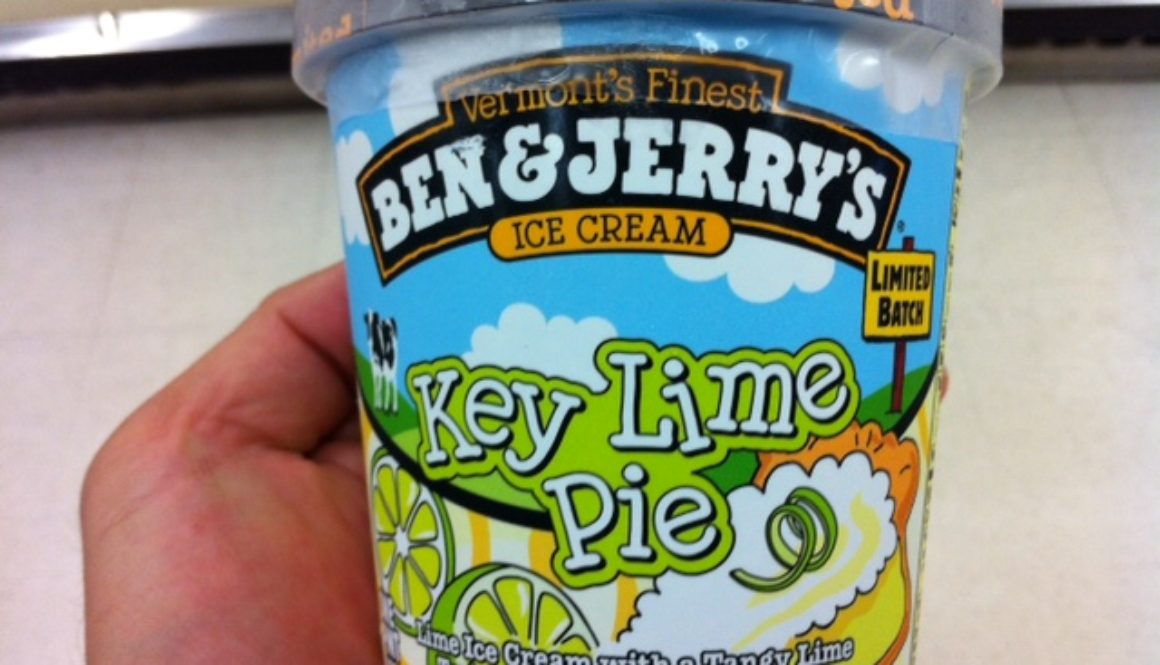
Highlighting some of the new stuff I saw at our local Safeway.

Ben and Jerry’s has a new limited ice cream flavor, Key Lime Pie. I love me some key lime, and this frozen treat does taste like key lime. Mellow key lime anyways, not a mouth-puckering, eye-squinting, sour-on-the-tastebuds key lime.
International Delight is changing their packaging with a newer, more sophisticated logo (seen on the left).

The Dark Knight rises, and he drinks Dark Berry Mountain Dew? Whatever, but Mtn Dew is definitely playing up the Dark Knight and Gotham City.

 I didn’t see this Mtn Dew, Dark Knight, and G Shock collabo at the grocery store, but if I did, I woulda grabbed it and seen if my Safeway Club Card gave me any discounts.

Had lunch at the Whole Ox Butcher & Deli but the darn WordPress iOS app ate my blog post. So anyways, here’s a late blog post and pictures of the onolicious grinds.


We ordered the dry aged burger, the roast beef sandwich, the chicken fried chicken, a side order of potatoes, and one pickle. I thought there would be leftovers. I was wrong. Okay, I lied. Technically there were leftovers – half of the dill pickle. But that leftover didn’t last the rest of the day.
The food is straightforward without too many extra components, accentuating the natural flavors. The interior decor is pretty Spartan without a whole lot of space for diners (the place looks bigger from the outside). Glad we beat the lunch crowd since the line of two customers quickly grew to about 10 as nearby workers flooded the place. Yeah, I’d definitely go back and try anything from their protein-rich menu.

What looks like an AppleTV, runs the Android OS, and irritates me to no end? It’s the TVPad!
First off, I admit that the language barrier didn’t help the situation, but if you’re thinking of getting one of these boxes, just know what you’re getting into. The TVPad is a custom box that runs specific apps to stream video from the Internet to your television. You can actually get your own computer hardware and install the same apps, but the TVPad is packaged into one small unit to make things very convenient. I won’t comment on the legality of the product or the video streams.
Now here’s where it gets dumb, and again, my language misunderstanding could have gotten in the way. Since the TVPad is meant to connect to your television to stream Internet-based video, you assume two things:
Not unreasonable, right? Connecting to your TV is really easy if you have HDMI. One cable and you’re done. So how about that connecting to the Internet part? Take a look at the box and the “instruction manual.”


What would be your guess to connect the TVPad to the Internet? WiFi? I can read that on the box, and the manual shows the configuration steps. But no, you and I would be wrong. You see, the TVPad M121 does not support WiFi!! I have no idea why, and I still question this engineering decision. The only hint that WiFi isn’t on the M121 model is this statement in the configuration settings:
As a wireless network environment is uncertain, please choose the cable network for your comfort.
Translated this means suck it up and hardwire me to the Internet. Seriously?!
 You have to use the cabled Ethernet connection to get the TVPad online. You have an Ethernet cable installed in your living room by your television, right? It’s common in every household, right? Oh wait, the TVPad has a USB port. That’s the answer. You can use one of those going-out-of-style USB WiFi adapters. Those are relatively cheap now. So I got one, a name brand one that should do the trick. But no, it didn’t. There was no indication that WiFi was now enabled via this adapter. More online research that keeps point me back to the wired Ethernet port. Really? Really.
Now, I wasn’t about to string a 50-ft CAT5e cable from the router through the living and dining room to the TV. And no, we weren’t going to relocate the Road Runner drop. What next? Set up a WiFi/Ethernet bridge like a wireless basestation working in reverse. Have you tried to get an older, unsupported 802.11g router working with a WiFi bridge from another vendor? You have? Good for you! I wasn’t about to go down that possibly tortuous road. Instead, I went for the (more expensive) sure thing – the dual band, 802.11n Apple AirPort Express.
I swapped out the older 802.11g router with one AirPort Express to act as the primary router and added a second AirPort Express to bridge the wireless back to a wired connection for the TVPad. This setup was much faster than figuring out the TVPad doesn’t or won’t natively support WiFi.
Then success, bittersweet success. The TVPad with $200 more in extra equipment was finally up and running. It actually streams video well and is responsive. Just remember that you have to choose the cable network for your comfort.
Here are some pics for the heck of it.
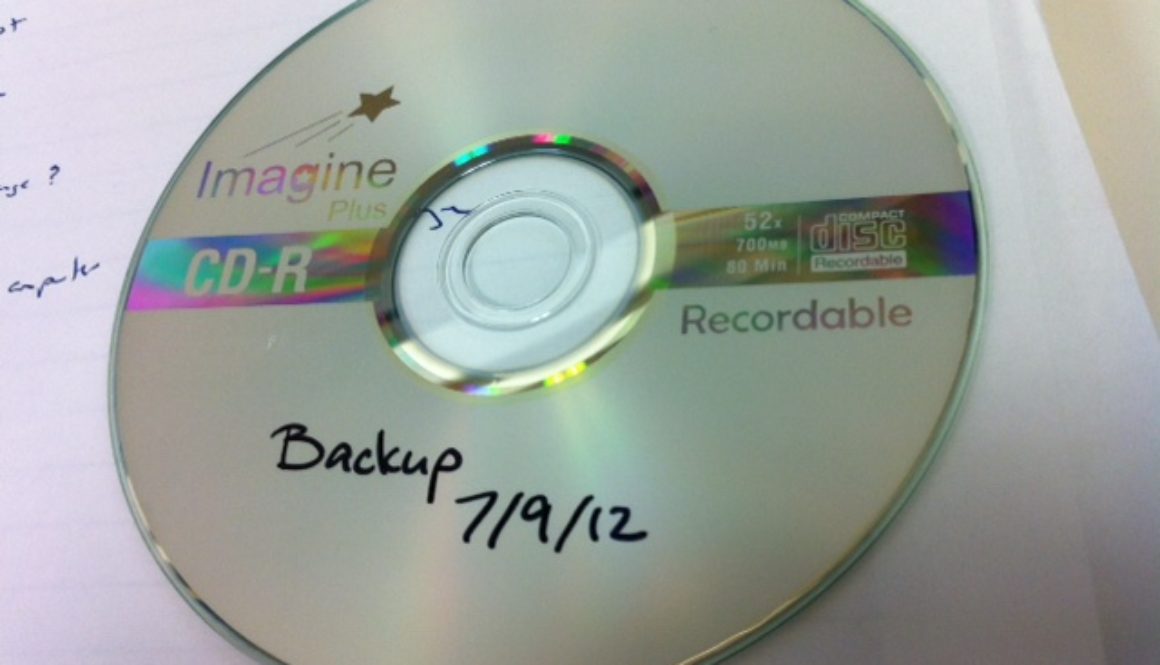
Seemingly, the totality of my work knowledge can be contained on a single disc, an 700-MB CDR.

I was backing up my documents on my work computer and pared down my files I wanted to keep to fit on a single CD – not sure how to view that fact. And oh yeah, the CD is only half full.
Aww, wait… I didn’t bother to verify if the disc is actually readable and usable. Perhaps that’s a better testament to my totality of work knowledge?

Whoa, just discovered the LiveLyrics feature of the SoundHound app. How does it do that?

Showing the lyrics for a song is cool, but scrolling the lyrics line by line in step with the music is downright amazing!
This is an interesting spin on pop music success. Katy Perry started her musical career as Katy Hudson, a gospel singer. She then underwent a pivot, changing her persona and her fortune.
Basically, Lana Del Rey followed a similar path to Katy’s but with differing results (for now anyways). The trailer park-living Lana is actually Lizzy Grant who has significant backing for her talents. Her past and musical start didn’t begin with YouTube but as a member of Interscope Records. After this was revealed, there was backlash against Lana though her Born to Die album is melancholically good.
I’m not sure why Katy’s change didn’t derail her popularity. Maybe it’s Katy’s can’t-be-taken-seriously image she portrays that is the big difference, personified with songs like California Gurls and Last Friday Night. For the seriousness and weight of Lana’s genre, a transgression in her storied past cuts deeper since it questions her pain and angst captured in her music.
Listen to Lana’s music, and you decide for yourself.

What does the essence of Oahu taste like? Take a sip of Starbucks’ new (and limited) Oahu Coffee to find out. Check out the coffee’s description:
This 100% Oahu Coffee is grown in rich volcanic soil amid gentle Pacific breezes, resulting in sophisticated notes of baking chocolate and dried fig, and a silky, smooth texture.
Who knew our trade winds induces flavors of chocolate and fig? Anyways, look for this limited release in-store or better yet, order online at StarbucksStore.com.

Scanning pictures taken from the blessing ceremony for Season 3 of Hawaii Five-0, I didn’t see anyone wearing the custom designed Nike Free Trainer 5.0. These shoes needed an appearance at this event. 🙁


I’m hoping these kicks are seen sometime this season on or off air, preferably on air. C’mon H50, if you got custom kicks, you gotta book’em rock’em!

Aw, I’m bummed that my original pair of Eco-i-Lite flashlights have both died. I love these rechargeable lights. Plop them into their inductive charging bays, and that’s it. When the power goes out, these light up themselves. Under normal conditions, the charging bays also act as night lights. The LEDs in the flashlights are bright (though not focused beams) and their batteries last for a long time.
Sadly, I can’t find them locally anymore. I swear I bought these at Costco or Sam’s Club a few years back and thought I saw them in the past few months. But neither big box retailer carries them anymore. Not sure why, but Amazon has them so I’m ordering a new pair.
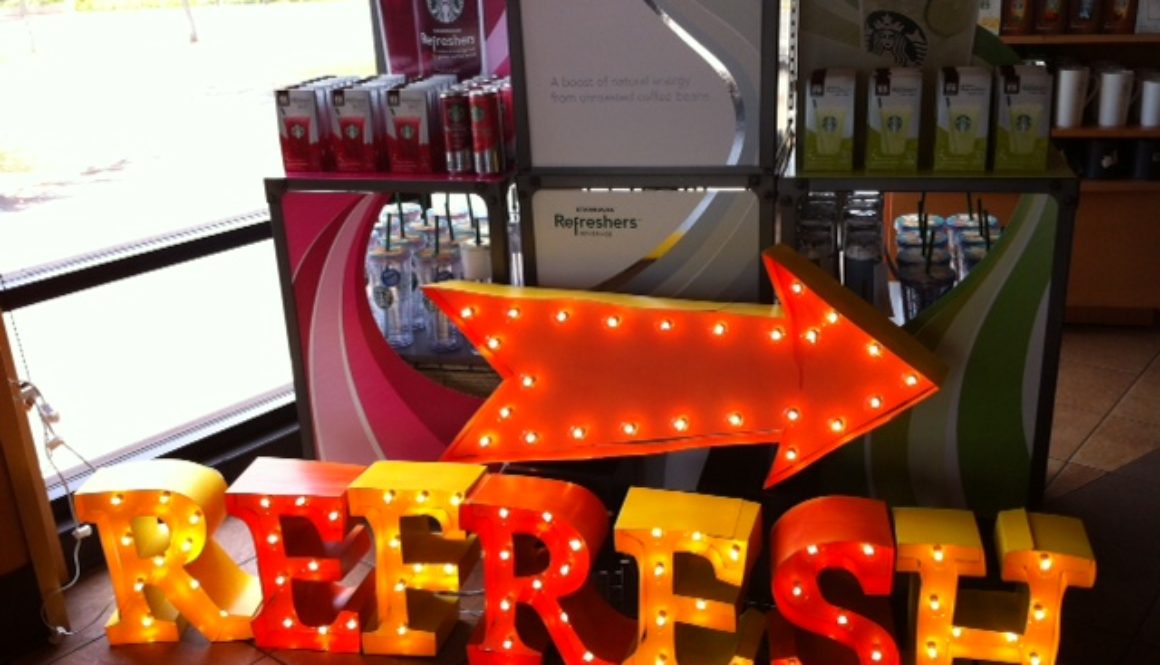
It’s not just the Enchanted Lakes Starbucks getting refreshed. The Pearl City Shops Starbucks is also charged up for the national launch of Starbucks new Refresher flavors.
Check out this electrifying display! I didn’t see this at Enchanted Lakes.

Since it was lunchtime, there were samples of hand crafted Cool Lime and Very Berry Hibiscus. What did I think? Well… I expected more tartness from the Cool Lime. That or I would have preferred some carbonated zing. But the carbonation is reserved for the canned Refreshers (Raspberry Pomegranate, Strawberry Lemonade, and Orange Melon). Both the Lime and Very Berry drinks are available either hand crafted (made in the store) or in instant VIA form. Of course the hand crafted versions have fresh ingredients added that are not in the VIA packets. As of now, there are no canned versions of Cool Lime or Very Berry Hibiscus.

Next I sampled the Very Berry Hibiscus and true to my expectations, I was reminded of the Hibiscus flower while drinking this. It’s a better blend than the Cool Lime, but I can’t shake that flowery image as I drink it. Oh, and a word of caution. After sampling the Refreshers, your palette is in for a bitter shock if you chase it with a coffee-based drink.
So the Refreshers live up to their namesake and is refreshing. This marks a different market for Starbucks, going beyond coffees and teas. But I’m still a coffee fan, addicted to its taste, color, and scent, so I’m sticking with the brown stuff. 🙂
Here are a few more pictures of the Starbucsk Pearl City Shops location.


The conclusion of the Twilight saga starts November 16, 2012.